
User guide
Moins jeter, step by step
Set up the service, keep the calendar, handle reports, organise shredding, run the reuse area. Words in quotes are the French on-screen labels, with their meaning in English.
1
Open and set up the service
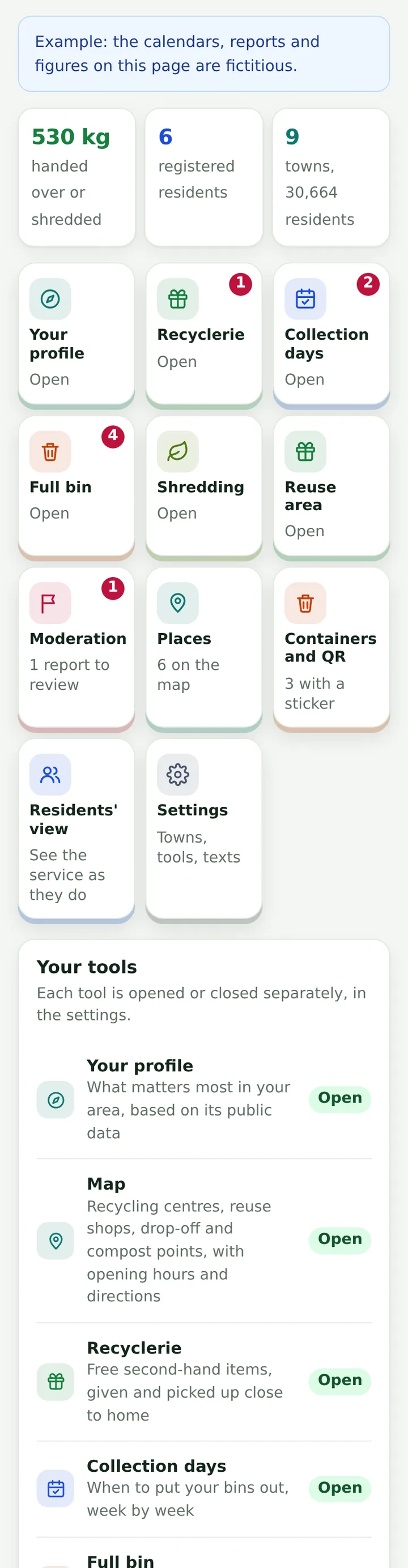
- Open the service tile in your Ngento app: you land on the local authority home screen.
- If nothing is set up, the screen guides you: first your municipalities, then the tools open to residents.
- “Réglages” (settings): under “Vos communes”, type municipality names, postcodes or the name of your inter-municipal body, separated by commas, then “Rechercher et enregistrer” (search and save).
- Still in settings: tools open to residents, then the service: name shown to residents, local authority name, contact address, data controller, data protection officer, deletion of inactive accounts after (days), and the local authority's SIRET number (needed for the article 58 return).
2
Your profile
- Tap “Votre profil”, then “Calculer le profil” (calculate): it reads public data and takes less than a minute.
- At the top, your public facts; below, priority actions, actions to check and less relevant ones. Tap an action to see why, the proposed target and where the recommendation comes from.
- If an action already exists: “C'est déjà en place chez nous” (already in place). If your pay-as-you-throw scheme was adopted after the public data, declare it in the profile settings.
- “Mettre à jour” (update) reruns the calculation; “Sources” lists where each figure comes from.
3
Places and the map
- Tap “Lieux” (places), then “Ajouter un lieu” (add a place): name, type, address (or tap the map), use, opening hours, contact.
- For drop-off points, “Importer des points d'apport”: your CSV or GeoJSON file, or “Reprendre les points d'OpenStreetMap”, to check afterwards on the map.
- “Mettre à la corbeille” moves a place to the bin; “Restaurer” brings it back.
4
Collection days
- Tap “Jours de collecte”, “Tournées” tab, then “Ajouter une tournée” (add a round): municipality, waste, days, frequency (weekly, or fortnightly with the date of a known collection), mode, time, instruction to residents, and what the round does on a bank holiday.
- “Cette semaine” (this week) tab: tap a collection to cancel it, move it to another date or return to the normal calendar, with a message to residents.
- “Fériés” tab: bank holidays to decide. Residents see “to be confirmed” until you decide.
5
Full bin reports
- Tap “Bac plein”: “À traiter” (to handle), “Traités” (handled) and “Mesure” (measurement) tabs.
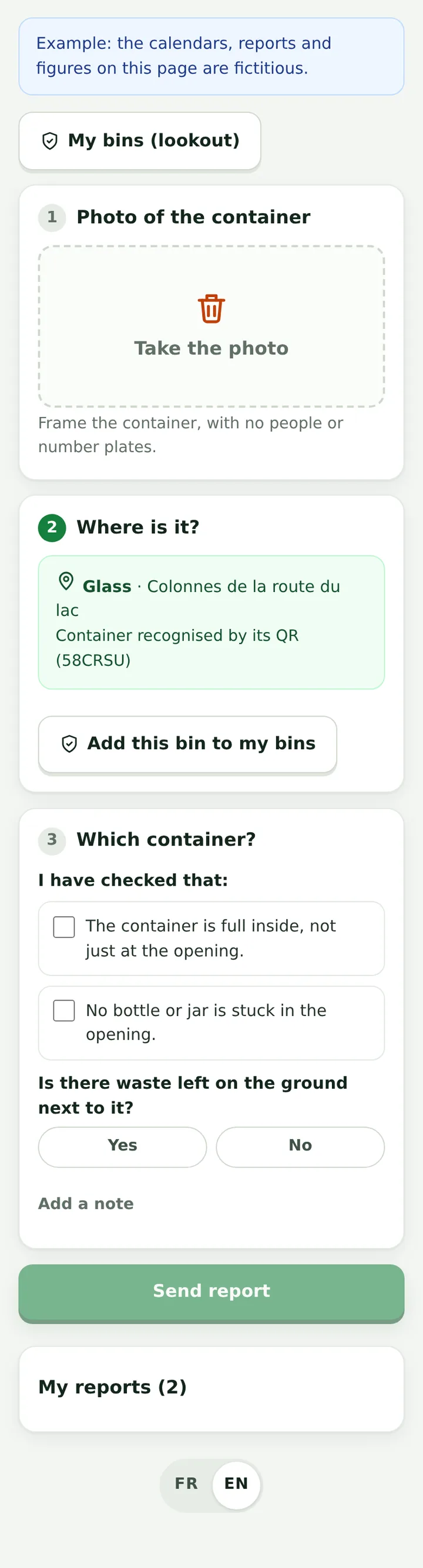
- Open a report: photo, ticked checks, waste on the ground or not, number of residents who confirmed it.
- Answer “Passage prévu” (collection planned), “Vidé” (emptied) or “Non fondé” (unfounded); for unfounded, a reason is required and shown to the resident.
- “Mesure”: the containers that overflow most, from confirmed or emptied reports only.
6
Containers, their QR codes and lookouts
- Tap “Conteneurs et QR” (containers and QR codes), then “Créer depuis les points d'apport” (create from drop-off points): one container per point and per accepted waste type. “Ajouter un conteneur” adds one by hand.
- Set each container's type (bank, badge-operated, lidded bin, semi-underground): it decides which checks residents are asked for. A landmark (“left of the bus shelter”) helps staff on site.
- “Télécharger les autocollants (PDF)” (download the stickers): an A4 sheet, one QR per container with its code in plain text. Print it on outdoor adhesive sheets and stick each label on its container. During the trial access, the sheet reads “ESSAI — NE PAS COLLER” (trial, do not stick): labels are stuck with your permanent app.
- A resident who scans the QR lands on the full-bin report for THAT container; they can also become a lookout (“Devenir sentinelle”) and follow the containers in their street. They are told when you answer “Vidé” (emptied).
7
The Recyclerie (giveaways)
- Tap “Recyclerie”: current figures (listings online, reserved, items given), then “À relire avant publication” (to review before publication) and recent listings.
- Each resident's first listings wait for your review: look at the photos (no faces, children, number plates or letters with a name), then “Publier” (publish) or “Refuser” (refuse) with a reason sent to the author.
- A listing online can be withdrawn at any time, with a reason shown to the giver.
- Residents write to each other in the app: phone numbers, email addresses and links are hidden, and anyone can report a message or block a person. Reports arrive in “Modération”.
8
Shredding
- Tap “Broyage”: “À planifier” (to schedule), “Planifiés” (scheduled) and “Bilan” (summary) tabs.
- Requests are grouped by neighbourhood: choose the visit date and “Planifier”; each resident gets an email.
- After the visit, enter the shredded volume in m³ and “Fait” (done).
- Set the price shown to residents, visits per household per year, the neighbour grouping distance and the weight of one m³ of shredded material.
9
Reuse area and article 58
- Tap “Zone de réemploi”, “Registre” tab: received or handed on, category, weight, weighed or estimated, date, place, then “Enregistrer” (save).
- “Bilan” tab: kilos received, kilos handed on, share handed on, by category.
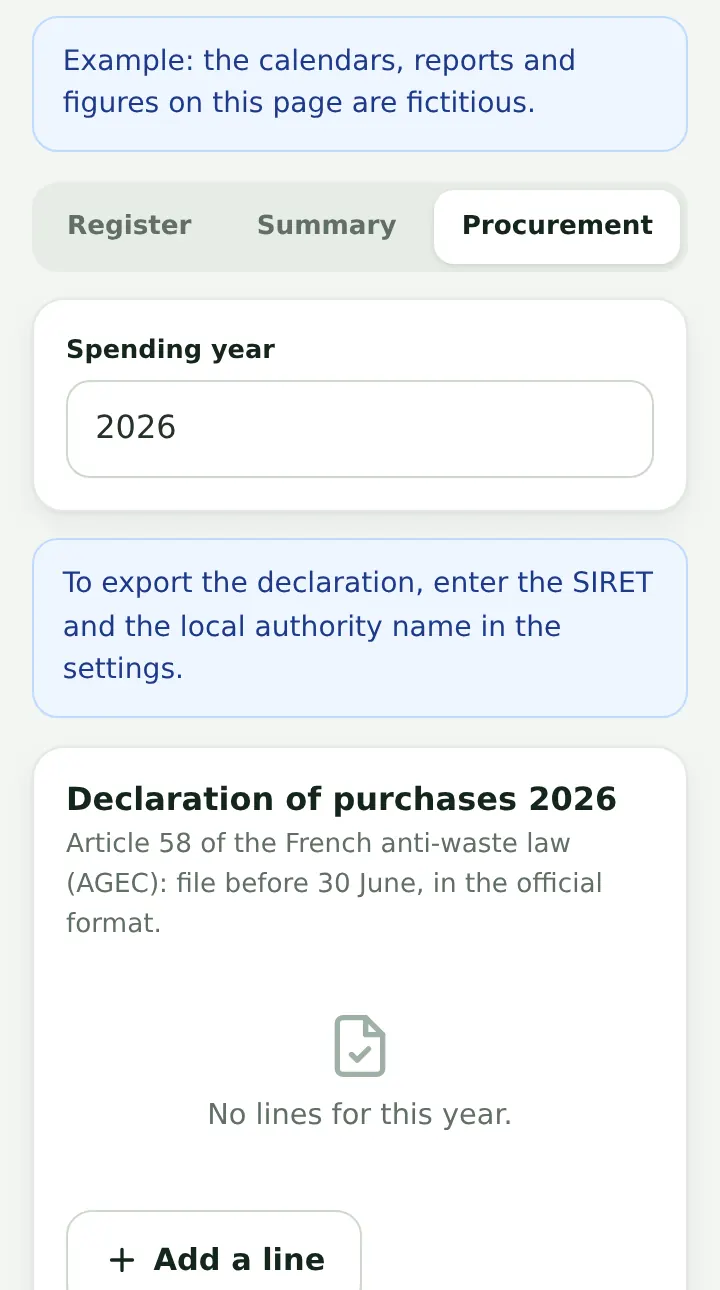
- “Achats publics” (public purchasing) tab: choose the year, add one line per official category, use the calculator for the value of donations, then “Exporter le CSV”. The SIRET and local authority name must be filled in under settings.
10
Moderation
- Tap “Modération”: content reported by residents.
- Choose “Retirer le contenu” (remove) or “Maintenir” (keep), with the reason for the decision.
11
What residents see
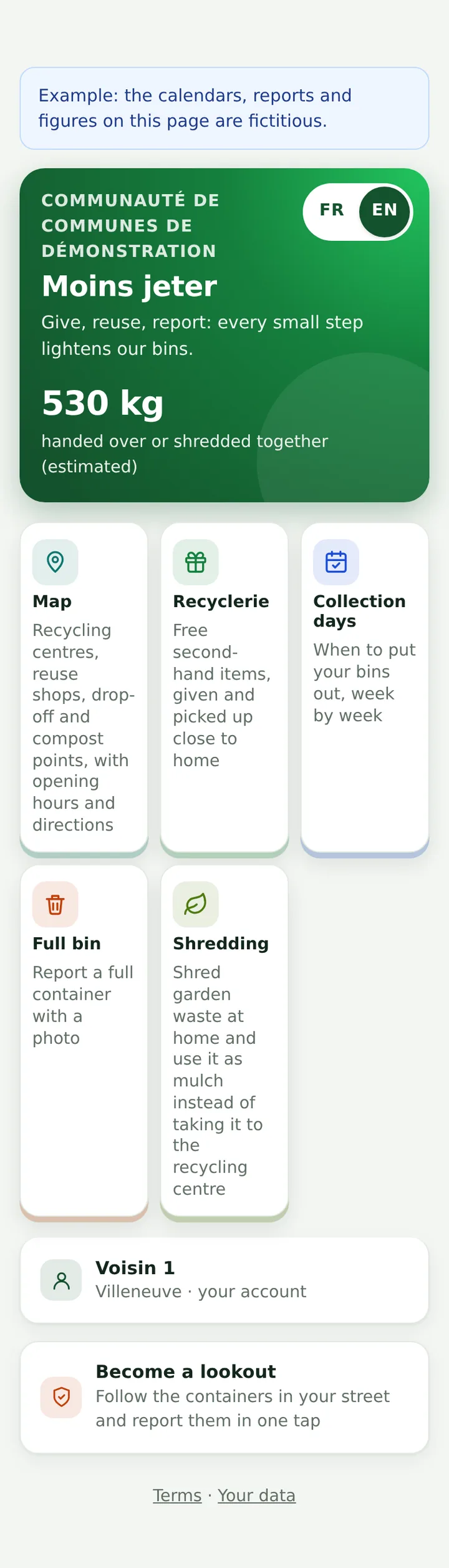
- “Côté habitants” (residents' view) opens the service as they see it: share the address of this page (council website, posters, letters).
- Residents choose their language (FR / EN), check collection days without an account, and create a free account to give or reserve an item in the Recyclerie, report a full bin, become a lookout or request shredding.
- No password: “Receive my link” sends a sign-in link valid for 30 minutes. “Delete my account” erases everything, permanently.
12
Waste management (separate block, for the service)
- Open “Gestion des déchets”. “Imports”: “Importer un fichier” (the register at the start, then bin lifts, recycling centre visits, weighings). The first time, check the proposed column mapping: it is kept for that source.
- “Liste de travail” (work list): “Relancer les contrôles” (rerun checks), then set each line to “corrigé” (corrected) or “justifié” (justified, with its reason).
- “Usagers” (users): “Rechercher un usager” to see their premises, bins and history.
- “Tarifs” (schedules): enter the schedule from your council decision, “Enregistrer la grille”, then “Simuler” or “Comparer” two schedules.
- “Facture du prestataire” (contractor invoice): enter the contract, the indices and the invoice; each difference is shown with its explanation.
- “Tableau de bord” (dashboard): three conclusions, the annual report indicators and the deadlines.